To-Dos
To-Dos
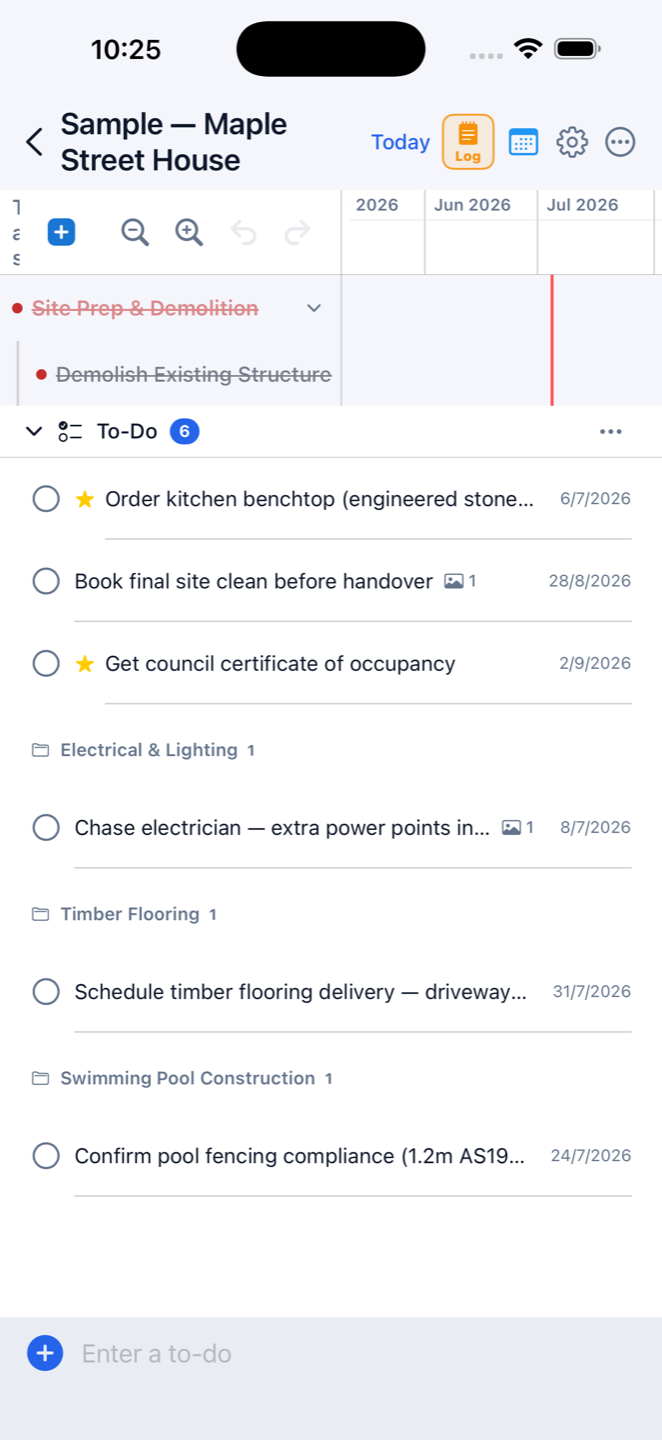
Pull the to-do panel up from the bottom of the Gantt screen. Punch-list items that live right next to the schedule.
Linked to tasksStar & due datesOn-time remindersHome-screen widget
Pull the to-do panel up from the bottom of the Gantt screen. Punch-list items that live right next to the schedule.
A construction to-do list lives or dies by one thing: whether it's where you already are. In Construction Gantt the to-do panel pulls up from the bottom of the Gantt screen, so the checklist and the schedule are never two apps apart. Use it as a daily task list, a snag list at handover, or a punch list app for the defects walk — it's the same list, linked to the same build.
Link a to-do to a Gantt task, or push any task onto the to-do list with one switch. Linked items carry a Task badge: tap the name to open the task, tap the circle to complete it — and the Gantt chart updates too. Complete a parent task and its sub-tasks tick themselves off.
Every to-do takes a star for priority, a due date, an alarm, sub-tasks and an assignee. Photograph the defect as you log it — when the to-do is completed, its photos flow automatically into that day's site diary with a Done stamp, so the fix is on the record without anyone filing anything.
Overdue to-dos roll forward to today, every day, until someone actually does them — the original due date stays on record and it only pings you once. Done items group into This Week and Earlier, restorable or bulk-cleared by date range. A home-screen widget keeps the open list in sight: overdue in red, starred items flagged.